

How to Track In-App WebViews in GA4: Two Implementation Approaches Explained
*(The original article in Japanese was written by Yoshihiro Fujita, the Chief Solution Consultant of Ayudante’s GMP team. This article was translated by Masaki Kuroshima.)
A WebView (hereafter referred to as an in-app WebView) is a lightweight browser component embedded inside a mobile native app.
It allows you to display web content—such as product pages, articles, or member dashboards—without forcing users to leave the app experience.
This article explains how to measure traffic and user behavior inside in-app WebViews using Google Analytics 4 (GA4).
Two Approaches to Tracking In-App WebViews
You can measure in-app WebView activity in GA4 using one of the following methods:
1. Track the WebView as a “Website”
In this approach, you treat the WebView just like any other website:
- Install the GA4 tag or a GTM container snippet directly on the web pages.
- Tracking behavior and configuration follows the same logic as normal web analytics.
Many apps simply embed the same web pages used in mobile browsers (Safari, Chrome, etc.).
In these cases, the existing website tracking can often be reused as-is—a major advantage.

Important Considerations
• Sessions Do Not Persist Across App ↔ WebView
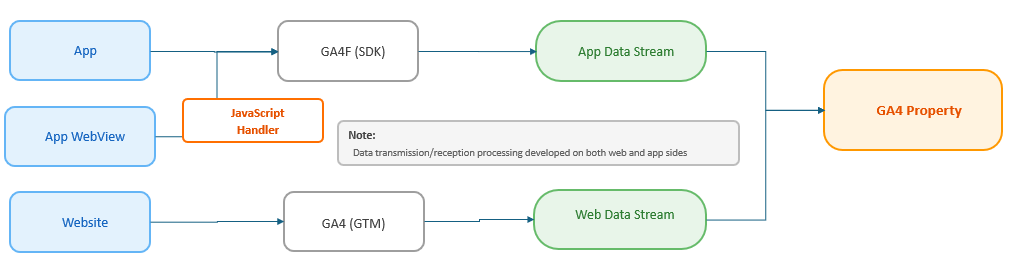
Native apps use an App Data Stream, while WebViews use a Web Data Stream.
GA4 does not unify sessions across different data streams.
➡️ Moving between native app screens and in-app WebView pages results in separate sessions being recorded.
• Users Are Not Unified by Default
Because user identifiers differ between:
- the native app (App Instance ID), and
- the WebView (Client ID),
GA4 treats them as different users.
If you implement User-ID and a user logs in, GA4 can unify their activity.
However, anonymous (non-logged-in) users will still be counted as separate individuals.
2. Track the WebView as Part of the Native App
In this method, the WebView sends analytics events through the GA4 Firebase SDK (GA4F)—not via the web tag.
This requires:
- Embedding a JavaScript handler in your WebView pages
- Implementing corresponding native code in the iOS / Android app
Official documentation:
- iOS: https://firebase.google.com/docs/analytics/webview?hl=ja&platform=ios
- Android: https://firebase.google.com/docs/analytics/webview?hl=ja&platform=android
Benefits
With this method, GA4 recognizes:
- The same user, and
- The same session,
across both the native app and the in-app WebView.
This produces a seamless measurement experience.
Important Considerations
• Requires App-Side Development
This is not a web-only implementation.
Native developers must add code to the app to enable event forwarding.
• Not Designed for Google Tag Manager
The JavaScript handler is not GTM-friendly out of the box.
If you plan to manage tracking through GTM, you must customize the handler code accordingly.
(Practical JavaScript knowledge is essential.)
• Automatic Web Events Will Not Fire
Because the measurement occurs via the Firebase SDK, web auto-collected events (e.g., page_view, scroll) will not fire automatically.
You must implement the necessary events manually.
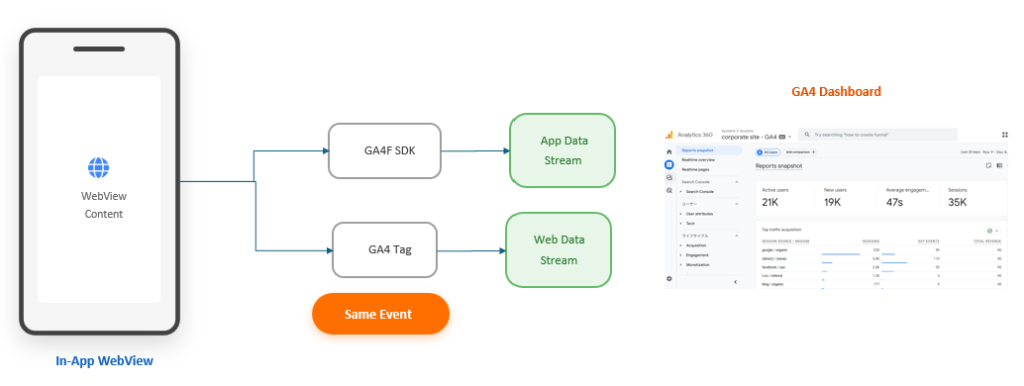
⚠️ The Biggest Risk: Double Counting
If the WebView displays a page that already contains GA4 Web Tags, events will be sent to:
- The App Data Stream (via Firebase), and
- The Web Data Stream (via the GA4 tag)
→ resulting in duplicate events.
How to Prevent Double Counting
Ensure that GA4 Web Tags do not fire when the page is loaded in the in-app WebView.
Possible strategies:
- Detect WebView using conditions such as:
- custom JavaScript flags (e.g.,
isWebView=true), - modified
userAgent, - app-injected variables or cookies.
- custom JavaScript flags (e.g.,
- Implement logic to disable the GA4 tag when WebView conditions are met.
The Firebase sample handler includes logic for detecting non-WebView environments.
You can reference (not copy) this logic to implement the opposite condition for WebView suppression.
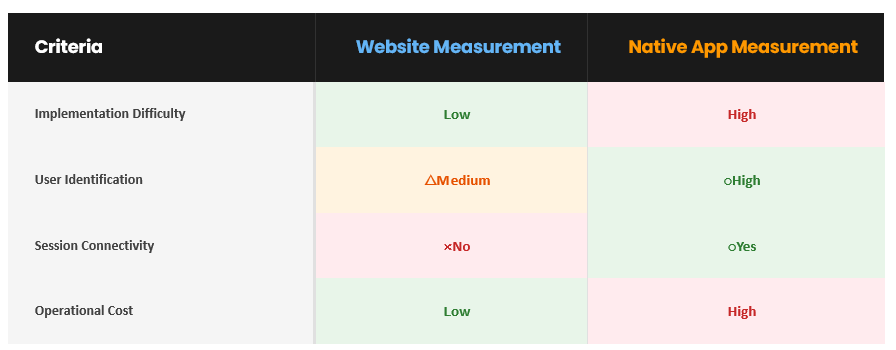
Comparison: Pros & Cons
| Method | Pros | Cons |
|---|---|---|
| Track as Website | Simple implementation; reuse existing tags; lower cost | Sessions and users not unified; requires User-ID for logged-in users only |
| Track as Native App | Full unification of user + session; cleaner analytics | Requires native development; GTM not supported natively; auto events not available; risk of duplicate data if not configured properly |
When to Choose Each Method
- Choose Native App method if:
You need accurate user/session continuity across app and WebView. - Choose Website method if:
You prefer lower implementation effort or want to manage tags through GTM. - If the app requires login, User-ID can help unify users even with the website approach.
- If your analysis focuses more on user behavior than session stitching, the website method may be sufficient.
Conclusion
There is no universal “correct” method for tracking WebViews in GA4.
The optimal approach depends on:
- how your app is structured,
- what user experience you want to measure, and
- what technical resources are available.
Evaluate your requirements carefully, compare the pros and cons above, and choose the approach that best aligns with your product and analytics goals.