

Cross-Domain Measurement, Explained: Should You Configure It in GTM or the GA4 Admin?
“I want to set up cross-domain measurement, but should I configure it in GTM or in the GA4 Admin? Do I need to set it up in both places?”
(The original article in Japanese was written by Yoshiko Ito, Digital Marketing Engineering of the Ayudante’s DME team. This article was translated by Masaki Kuroshima.)
That’s a question we get a lot.
The short answer is that, for standard cross-domain measurement, configuring it in the GA4 Admin is all you need. Google’s Help Center also recommends setting it up from the GA4 Admin.
If you need a configuration that the GA4 Admin does not support, however, you can configure cross-domain measurement in Google Tag Manager (GTM) instead.
In this article, we’ll walk through how to configure cross-domain measurement and the key points to keep in mind along the way.
What Is Cross-Domain Measurement?
Consider a website where the corporate site (example.com) sends users to a separate domain (shop-example.com) for checkout or other steps. Cross-domain measurement lets you measure user behavior across these domains as a single, continuous journey.
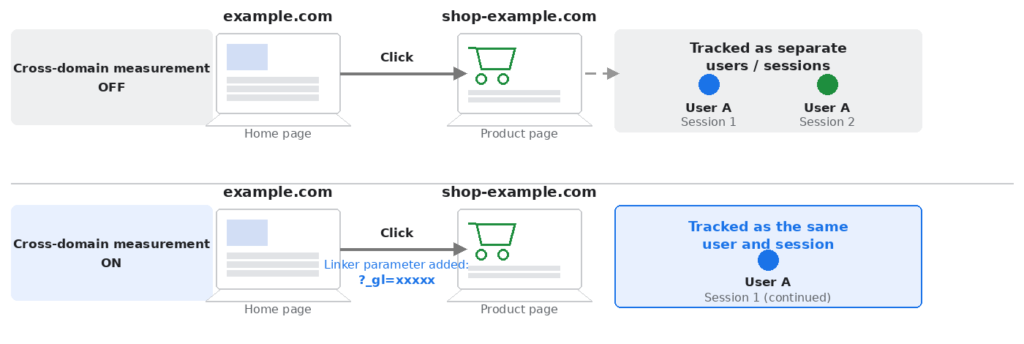
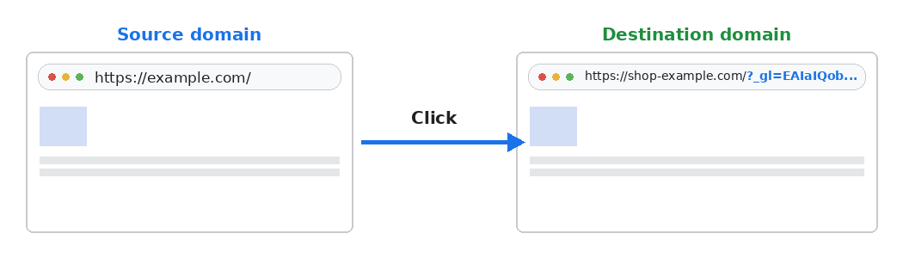
Once cross-domain measurement is configured, the linker parameter (_gl) is appended to URLs that point to the destination domain, allowing measurement identifiers to be passed between domains. This enables Google Analytics to recognize activity across different domains as belonging to the same user and session.
One point worth noting is how subdomains are handled.
For example, when users move between subdomains under the same parent domain – such as shop.example.com and blog.example.com – cross-domain measurement generally is not necessary, as long as both subdomains use the same cookie domain.
With GA4’s default cookie_domain setting of auto, the cookie is automatically set on the highest-level domain possible. That means GA4 can typically recognize the same user across subdomains under example.com without any additional cross-domain configuration.
However, if the subdomains are configured to use different cookie domains, self-referrals can occur. In that case, review the cookie configuration and determine whether cross-domain measurement is needed.
The difference can be summarized as follows:
| Transition | Is cross-domain measurement needed? |
| example.com → shop.example.com (same parent domain) | Not needed, as long as both use the same cookie domain |
| example.com → shop-example.com (different domain) | Needed – configure cross-domain measurement |
Note that shop.example.com and shop-example.com look similar, but the period (.) and hyphen (-) make them different domains. Be careful not to confuse the two.
The key is not to assume that a different subdomain automatically requires cross-domain measurement. Instead, check whether the hostnames fall under the same parent domain and how the cookie domain is actually configured.
What Happens If You Don’t Set Up Cross-Domain Measurement?
If a site requires cross-domain measurement but it is not configured, you may run into issues such as:
- A single user may be counted as multiple users and sessions when moving between domains
- Traffic source information may not be carried over correctly
- The conversion journey can become fragmented, making it harder to understand the user’s actual path to conversion
How to Configure It in the GA4 Admin
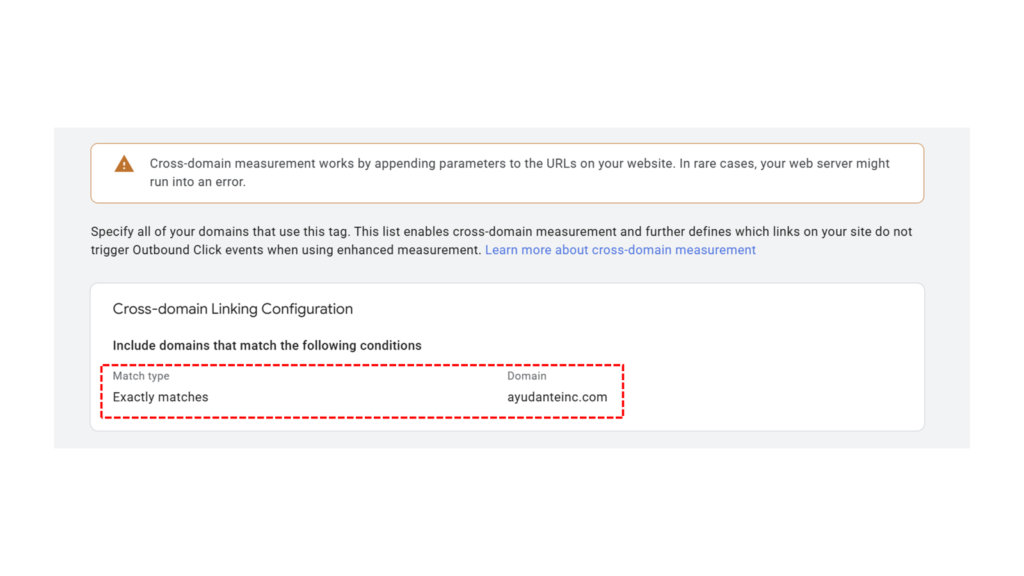
GA4 lets you configure cross-domain measurement directly from the Admin screen.
Even if you’re deploying your Google tag through GTM, standard cross-domain measurement can still be configured from the GA4 Admin.
Before you begin, make sure the participating domains use the same Google tag ID (the same G- ID) from the same web data stream.
Here’s how:
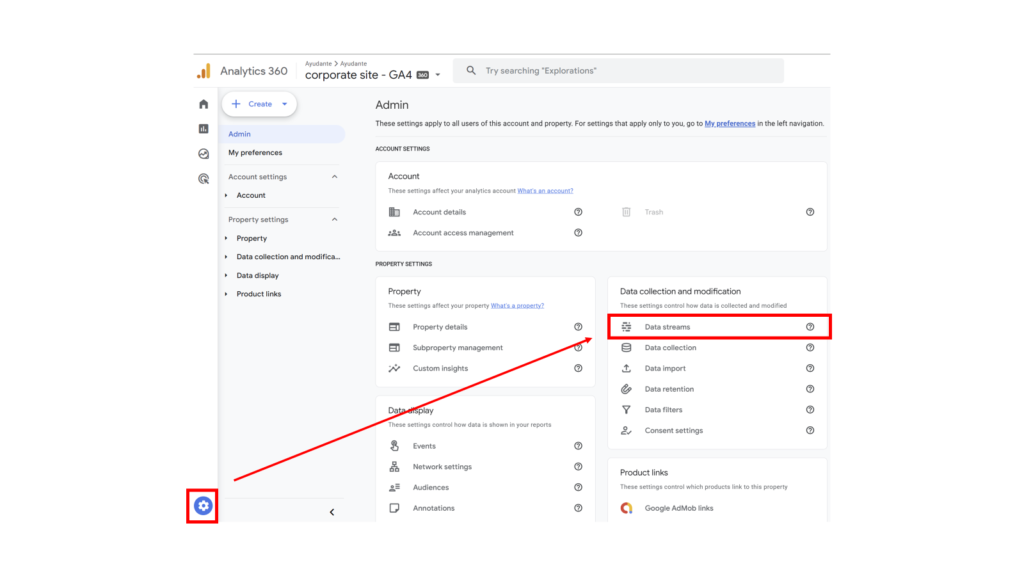
1.Open GA4 → Admin → Data streams
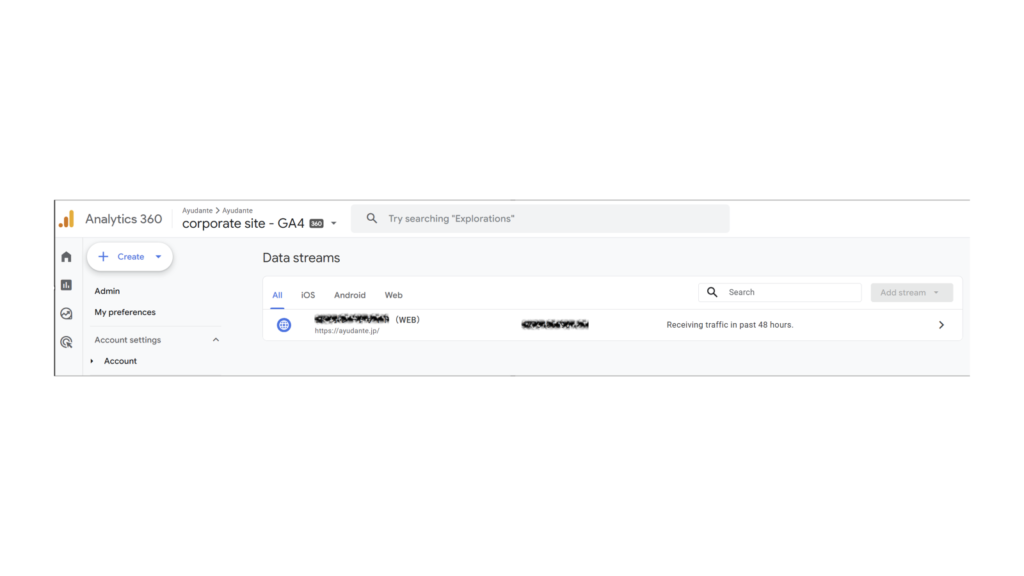
2.Select the web data stream you want to configure
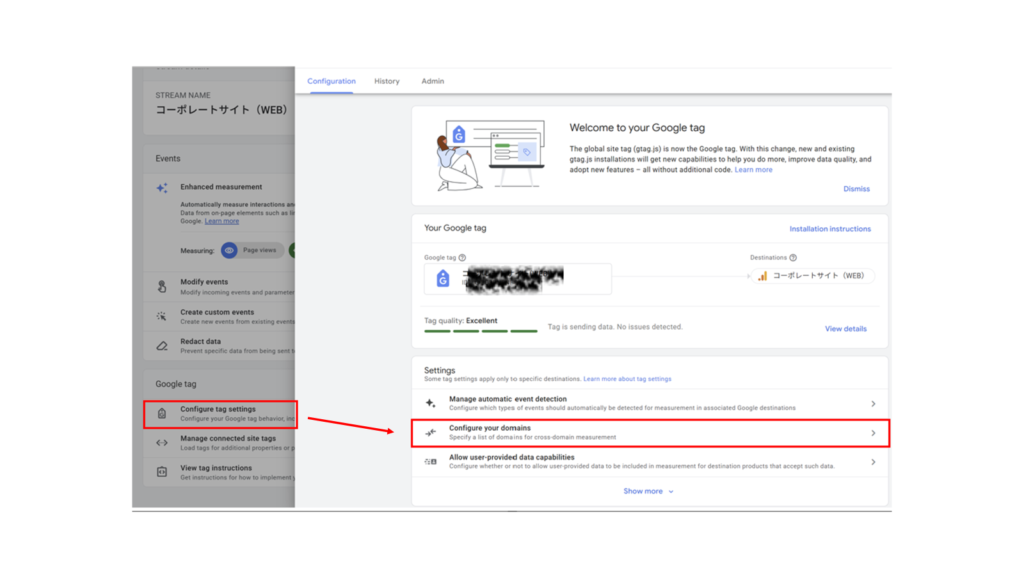
3.Go to Configure tag settings → Configure your domains
4.Add the domains you want to include in cross-domain measurement
When Should You Configure It in GTM Instead?
You can also configure cross-domain measurement in GTM.
As mentioned earlier, the GA4 Admin is the recommended place to configure standard cross-domain measurement. If you need a more detailed configuration that the GA4 Admin does not support, however, you can configure it in GTM instead.
One example is when you need to append the _gl parameter as a URL fragment (after #) rather than as a query parameter – something the GA4 Admin does not support.
Google’s developer documentation describes configuring the linker setting on the Google tag in GTM for cases like this.
Let’s look at the basic setup in GTM.
Open the Google tag you want to configure, then add linker under Settings → Configuration parameter.
For example, if you want to cover example.com and shop-example.com and place the linker parameter in the URL fragment, configure it as follows:
| Configuration parameter: linker Value: {‘url_position’: ‘fragment’, ‘domains’: [‘example.com’, ‘shop-example.com’]} |
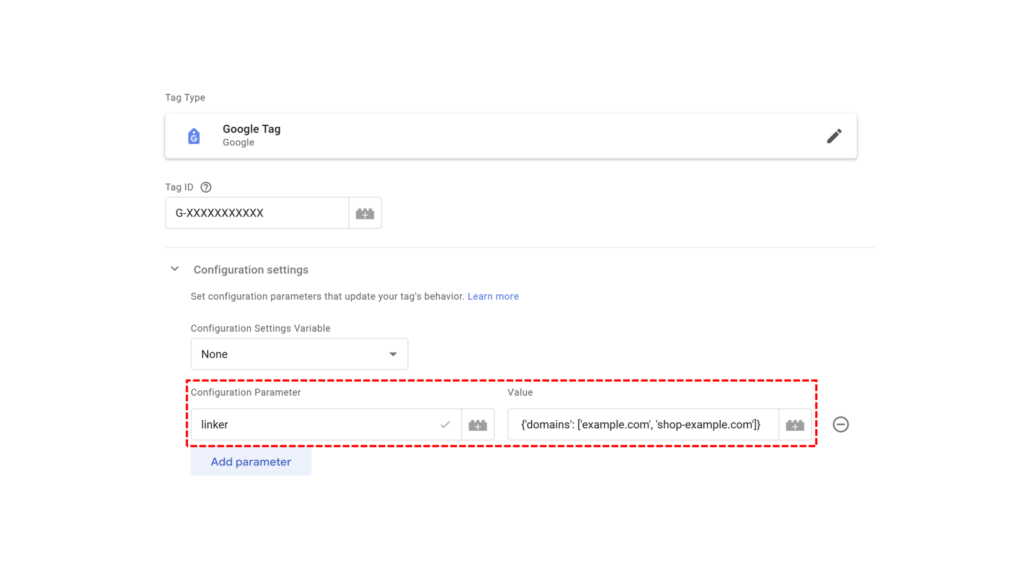
After configuring the setting, use GTM’s Preview mode to navigate between the target domains and confirm that the _gl parameter is appended to the destination URL.
Keep in mind that setting a linker in GTM overrides the cross-domain domains configured in the GA4 Admin. Avoid managing the same cross-domain configuration in both places. Decide which configuration will be authoritative and maintain the full domain list there.
How to Confirm Cross-Domain Measurement Is Working
To confirm that cross-domain measurement is working, click a link that should trigger it and check whether the destination URL contains the _gl linker parameter.
Don’t stop at checking the URL. It’s also a good idea to verify the measurement data itself – for example, by using GA4 DebugView or Realtime to confirm that user and session continuity is maintained as expected across domains.
Wrap-Up
Configuring cross-domain measurement is not the end of the job. It’s just as important to verify afterward that the implementation is actually working as intended.
If you notice unexpected changes in user or session counts, or if behavior across domains does not appear to connect properly, review your cross-domain measurement configuration and cookie settings.
We hope this article helps.