

How to Analyze Page Transitions in Google Analytics 4
Answering One of the Most Common Questions in Google Analytics
(Original Japanese article by Hanae Tsuchiya, Customer Success Consultant at Ayudante. English adaptation by Masaki Kuroshima.)
One of the most common questions in GA4 is:
-Which pages do users visit after the homepage?
-Which pages do users come from before landing on this page?”
In other words, how can we understand user navigation within a website?
In this article, we’ll walk through how to analyze page transitions in GA4 using:
- Explorations (Free form)
- Path exploration
1. Analyzing Transitions From or To a Specific Page
Using the “Page referrer” dimension in Explorations
To analyze page transitions, use the Explorations report with the dimension:
Page referrer
What is “Page referrer”?
This dimension shows the previous page URL (internal or external) that users visited before arriving at the current page.
Important Note on “Page referrer”
In practice, when using Page referrer, the results may vary depending on:
- Internal vs. external referrers
- Presence of query parameters
- Trailing slashes (“/”)
- Differences in domain formats (e.g., with/without subdomains)
Because of this, it’s important to carefully validate your filtering conditions when analyzing page transitions.
Example 1: Transitions from a specific page to other pages
Dimensions
- Page referrer
- Page path + query string and screen class
Metrics
- Views
Steps
1. Add the dimensions and metric
2.Set:
Rows → Page referrer
Values → Views
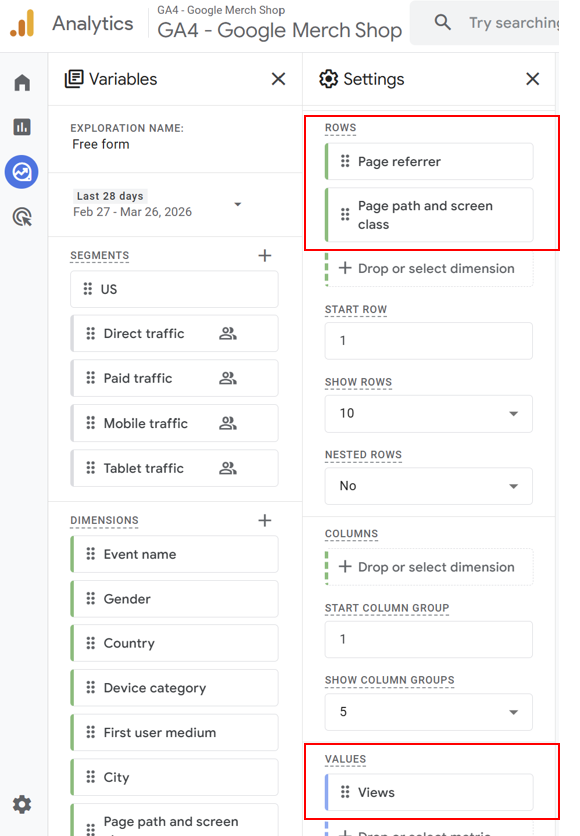
3.Apply a filter:
- Dimension → Page referrer
- Condition → contains / exactly matches your target page URL
💡 Tip:
Enable Nested rows for better readability.
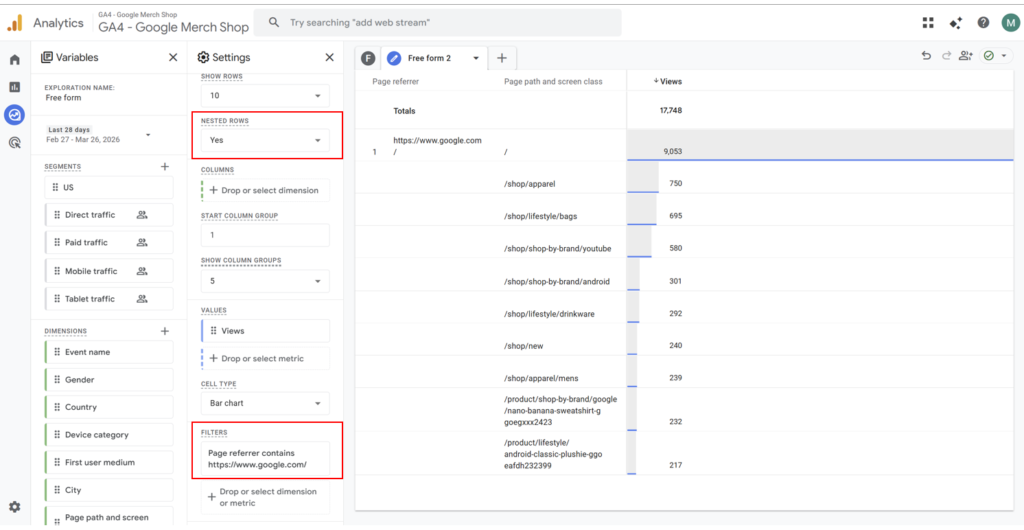
Example 2: Transitions from other pages to a specific page
Use the same dimensions and metric.
Then:
1. Apply a filter:
- Dimension → Page path + query string and screen class
- Condition → matches your target page
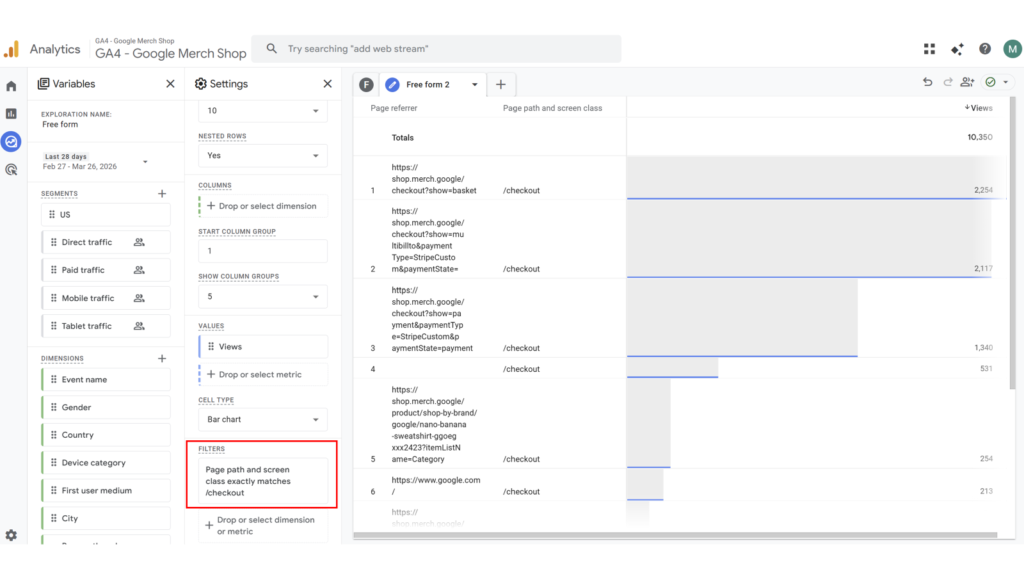
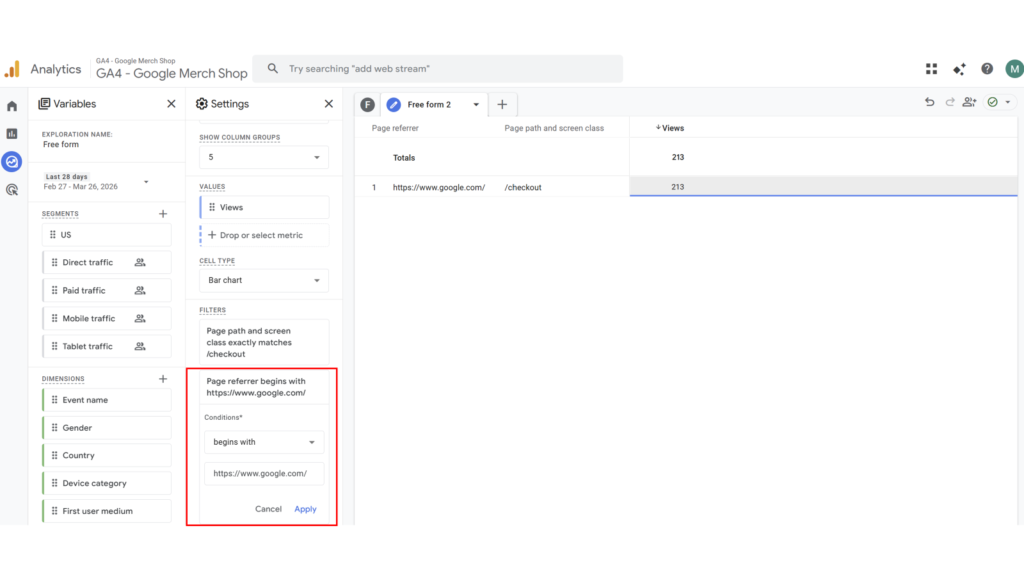
2. (Optional) To limit to internal traffic:
- Filter → Page referrer contains your domain
2. Analyzing Multi-Step Navigation
Using Path exploration
To visualize user journeys across multiple steps, use:
Path exploration
What Path exploration actually shows
Path exploration does not simply list page transitions.
Instead, it visualizes user behavior as a tree-like journey, allowing you to explore:
- The next pages users visit after a starting point
- The sequence of interactions that follow
- The paths users take before reaching a specific page
Example 1: Transitions from a specific page
1. Open Path exploration
2.Click Start over
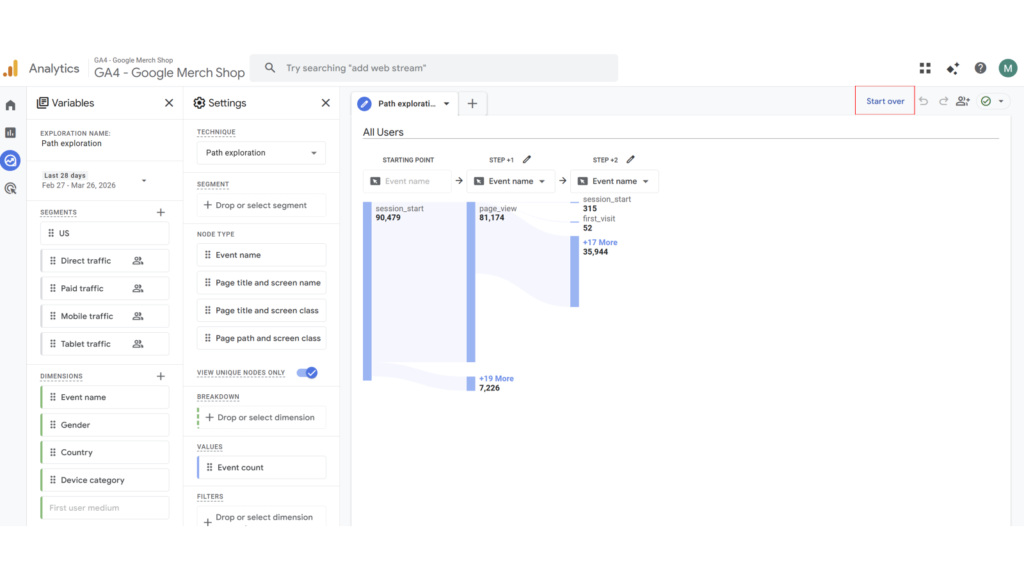
3.Set the Starting point
- Choose Page path + query string and screen class
- Select your target page
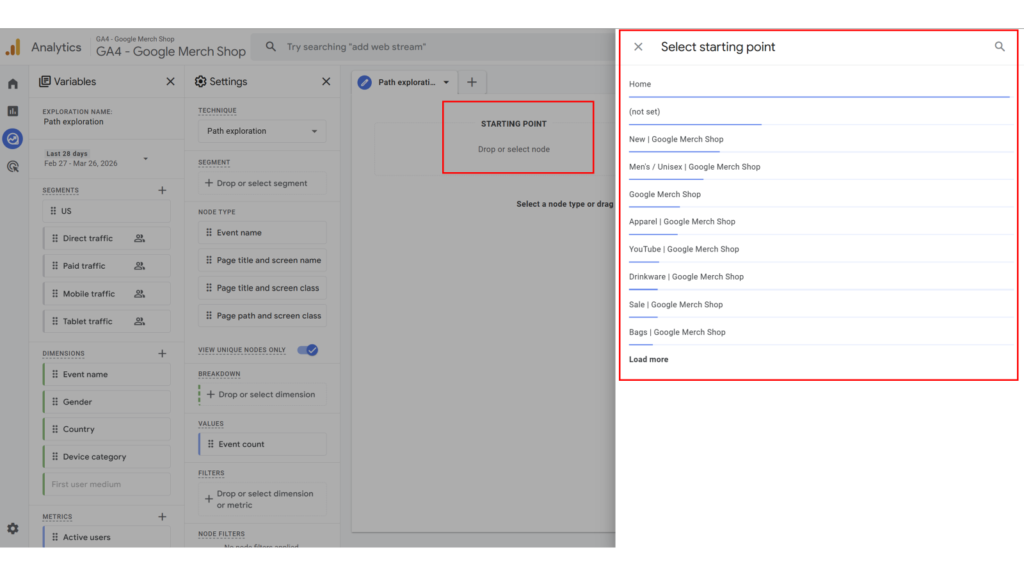
4.Expand using Step +1
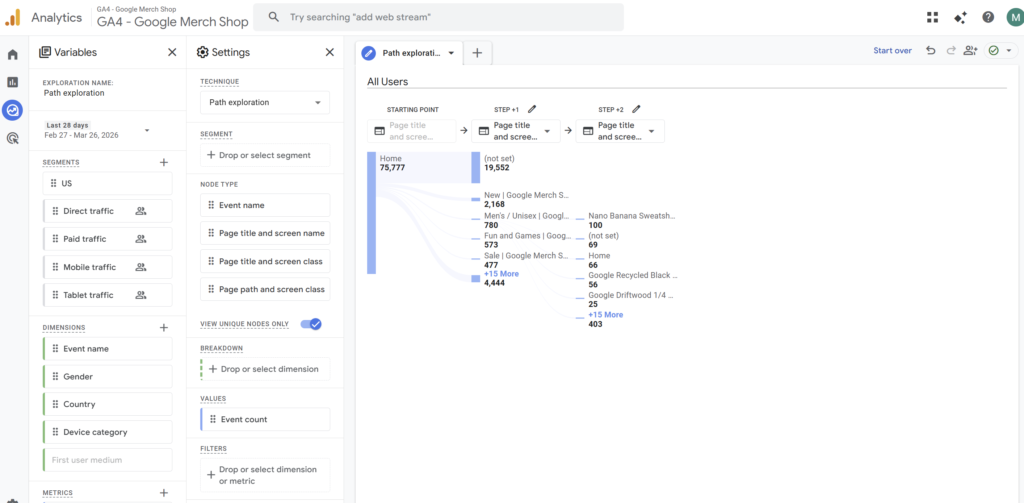
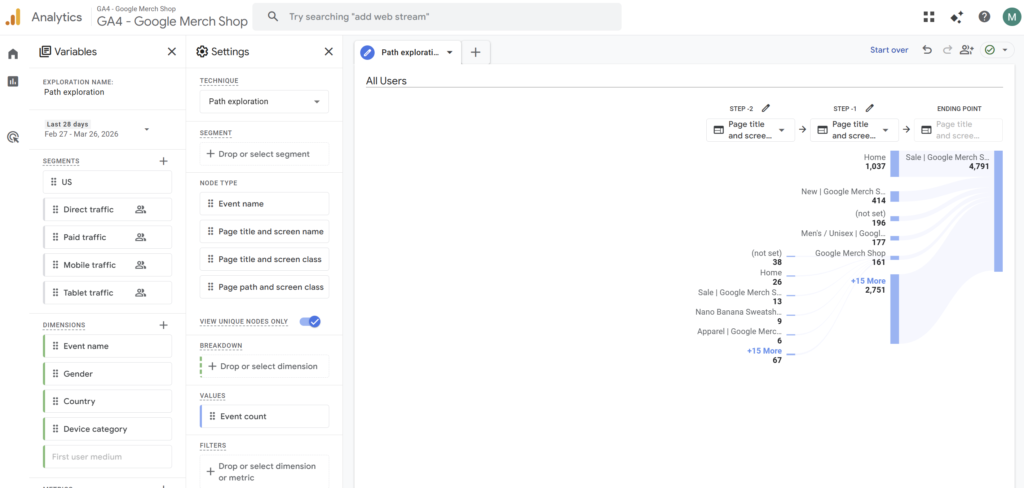
Example 2: Transitions to a specific page
1.Open Path exploration
2.Click Start over
Follow the same steps as above, then:
3.Set the Ending point
- Choose Page path + query string and screen class
- Select your target page
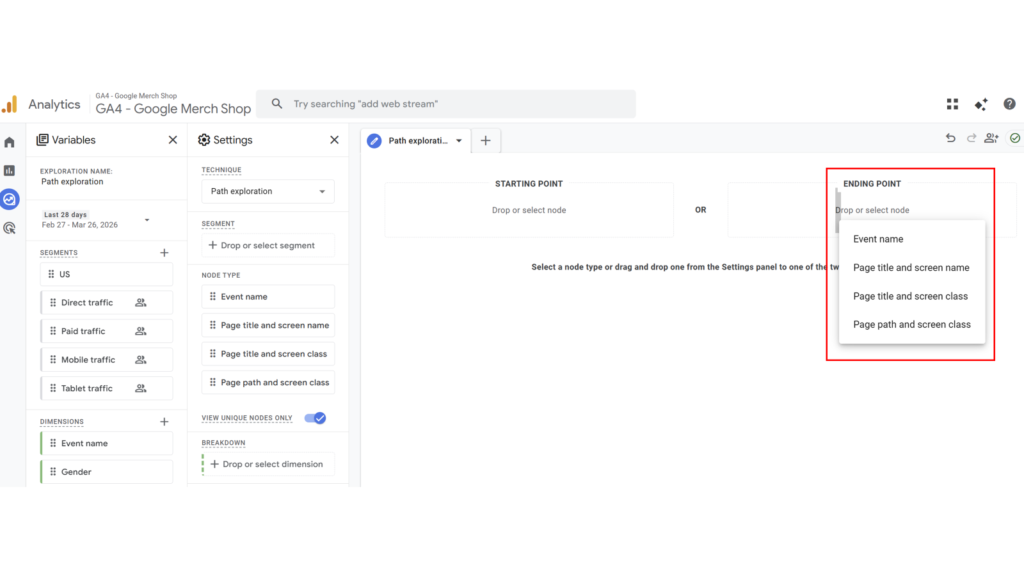
4.Expand using Step -1
Final Thoughts
By using Explorations to analyze individual transitions and Path exploration to understand the overall flow, you can gain a more comprehensive view of user behavior.
In GA4, combining these approaches allows you to understand user navigation not as isolated events, but as connected journeys.
This makes it easier to identify actionable insights for improving user experience, navigation flow, and conversion paths.